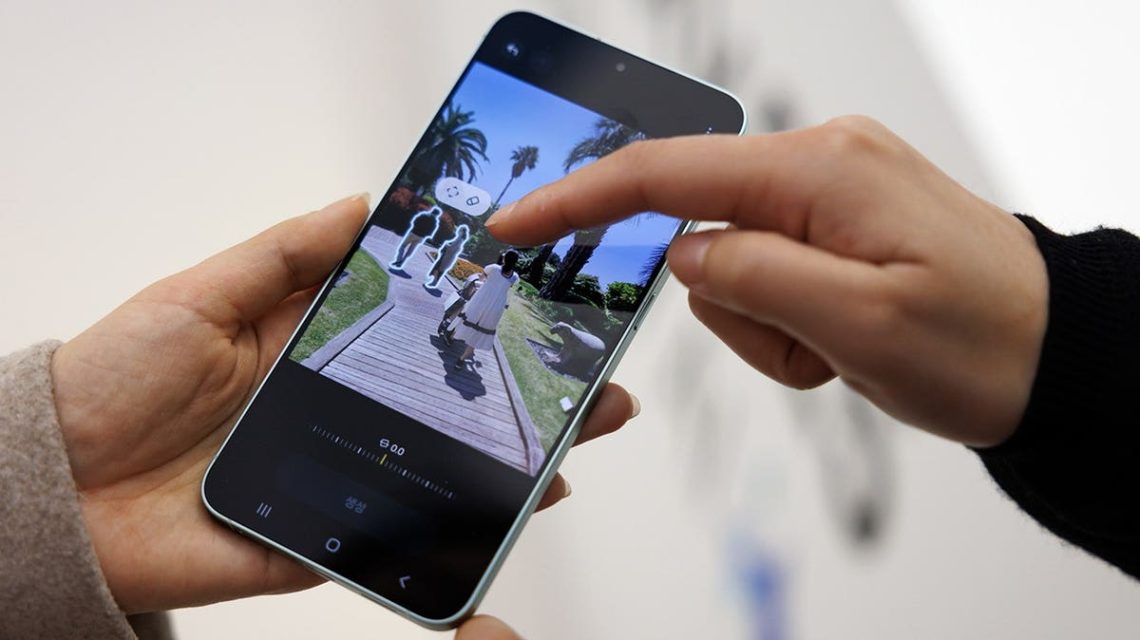
Your smartphone likely contains countless photos, ranging from cherished family moments to useful screenshots. Locating specific images can often feel overwhelming. Apple’s iOS 27 introduces a solution by allowing keywords to be added to photos, simplifying photo searches. Samsung Galaxy and Google Pixel devices offer similar organizational features, though they function differently. Here’s how to make use of these tools and spend less time searching through your photo library.
Organizing Photos on iPhone
iOS 27 allows you to assign keywords to photos for easier retrieval. The process is simple:
- Open the Photos app.
- Select the desired photo.
- Tap the Info icon or swipe up on the photo.
- Select Add Keywords.
- Enter memorable keywords.
- Tap the checkmark icon to save your changes.
You can edit or add keywords later by tapping Edit. Choose meaningful words, like “license plate” for a photo of your car’s tags, or a vacation name for family trip photos.
Finding Photos Using Keywords
Once keywords are added, finding photos becomes more straightforward:
- Open the Photos app.
- Tap the Search icon.
- Enter a keyword you used.
- Select the suggested result with the Aa symbol.
You can manage keywords by accessing Photos > Collections > your profile icon > Manage Keywords.
Organizing Photos on Samsung Galaxy
Samsung Galaxy devices enable tags in the Gallery app, allowing similar keyword assignment as iPhone. Here’s how:
- Open the Gallery app.
- Select a photo.
- Swipe up or tap the Details icon.
- Choose Add tag.
- Enter a keyword or phrase.
- Tap Save.
If tagging options are missing, ensure the Gallery app is updated.
Finding Tagged Photos
To locate tagged photos, use the Gallery’s search feature:
- Open the Gallery app.
- Tap the Search icon.
- Enter the tag you used.
Tagging photos with recognizable names, like “appliance model,” helps you locate them quickly when needed.
Using Albums
Albums can organize multiple photos from a single event:
- Open Gallery.
- Tap Albums, then the plus icon.
- Name the album descriptively.
- Select photos to include.
- Choose Move or Copy to complete the process.
For example, group receipts, labels, and related home repairs into a dedicated album.
Organizing Photos on Google Pixel
Google Pixel’s Google Photos app employs automatic recognition to sort photos without manual tags. To find photos:
- Open Google Photos.
- Tap Search.
- Enter a relevant description.
- View matching results.
If Google Photos recognizes your items, it categorizes them automatically, assisting you in locating specific images, such as receipts.
Creating Albums on Google Pixel
Albums for events or essential documents keep relevant photos together.
Tips for Smart Photo Organization
Effective habits can effortlessly manage your photos:
- Start with important photos like travel confirmations.
- Use simple, memorable names.
- Avoid complex labels that are hard to recall.
- Don’t forget to back up essential pictures securely.
Backup systems complement organization and protect important data. Consider whether you prefer automated image recognition or manual sorting.
 Party’s 2028 Agenda: Addressing AI and Economic Concerns
  Elon Musk’s Tesla Roadster: Hovering Capability Unveiled
  Microsoft President Criticizes Trump Administration’s Visa Policy
  Senator’s Infrastructure Proposal Sparks Debate on Energy Costs
  Protect Your Finances from Cyber Threats
  U.S. Army Prepares for New Challenges Amid Emerging Threats